
Pay with Zap: An easier way to pay on Paystack Checkout
You can use your Zap app to pay seamlessly on any Paystack merchant website!
This feature lets you use your Zap balance, Apple Pay or any linked bank account to complete payments quickly and securely. Best of all? Paying with Zap on Checkout is completely free for you.
How to Pay with Zap
When you're ready to pay on a merchant's site, you'll see "Pay with Zap" as an option on the Paystack Checkout form.
For Existing Zap Users
This is available on both desktop and mobile.
If you are on a Desktop:
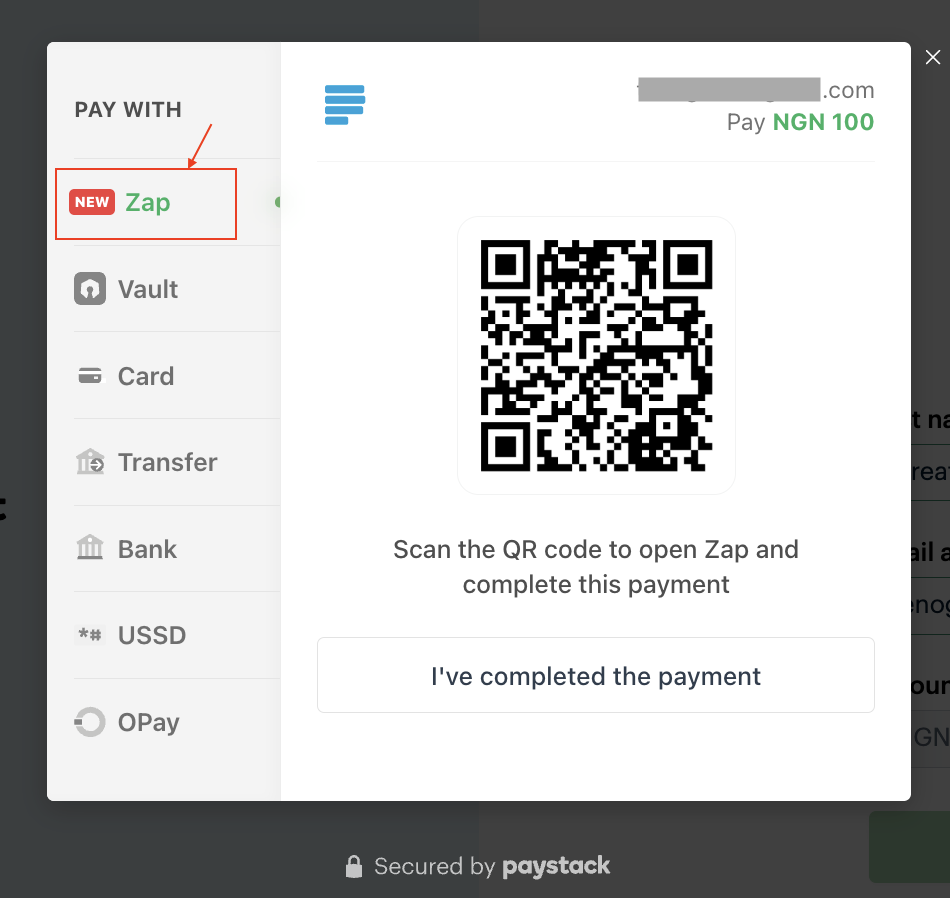
Select "Pay with Zap" on the checkout page.
Scan the QR code to open Zap and complete the payment.
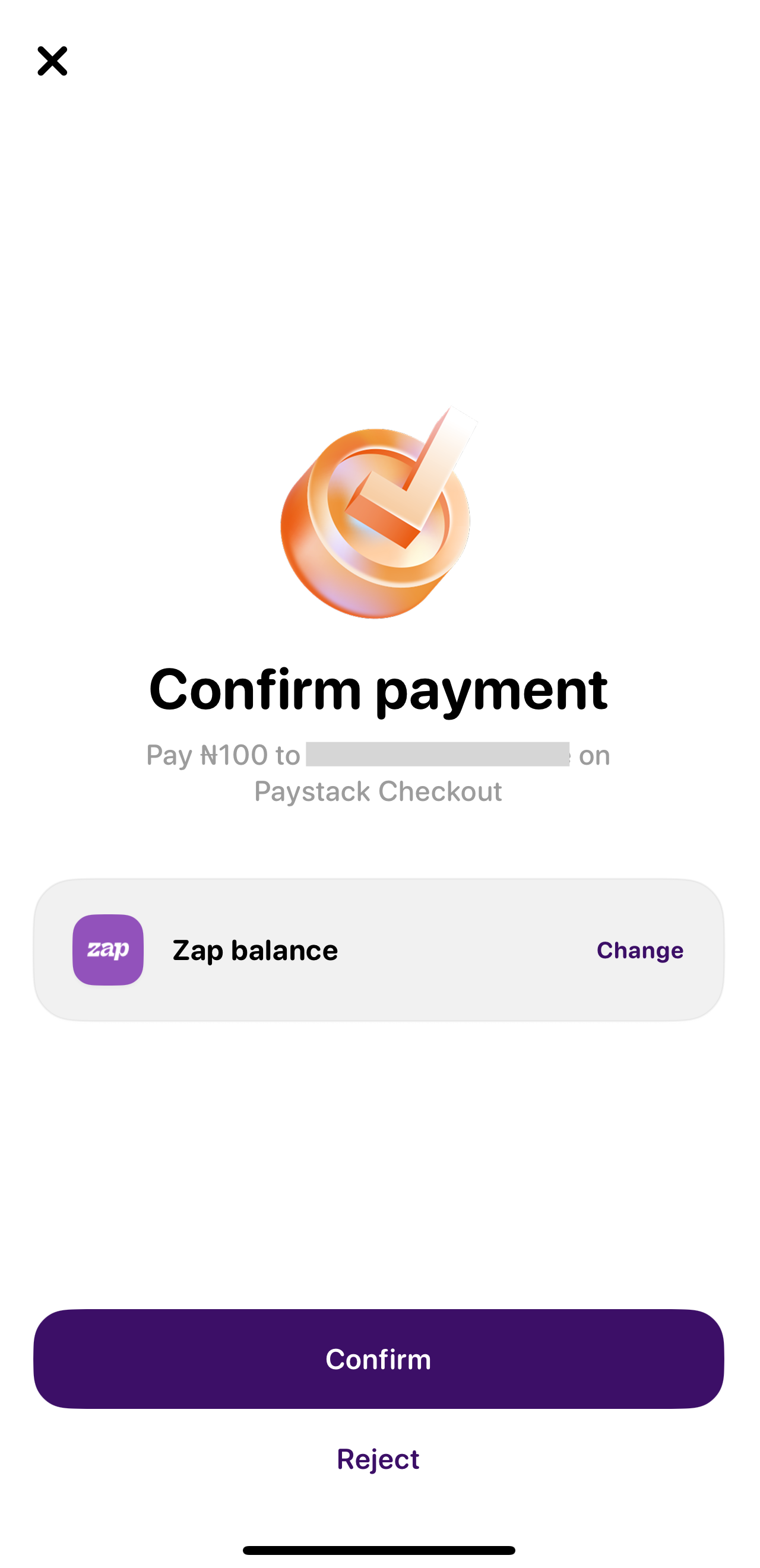
Confirm the transaction details and payment method, and tap "Confirm".
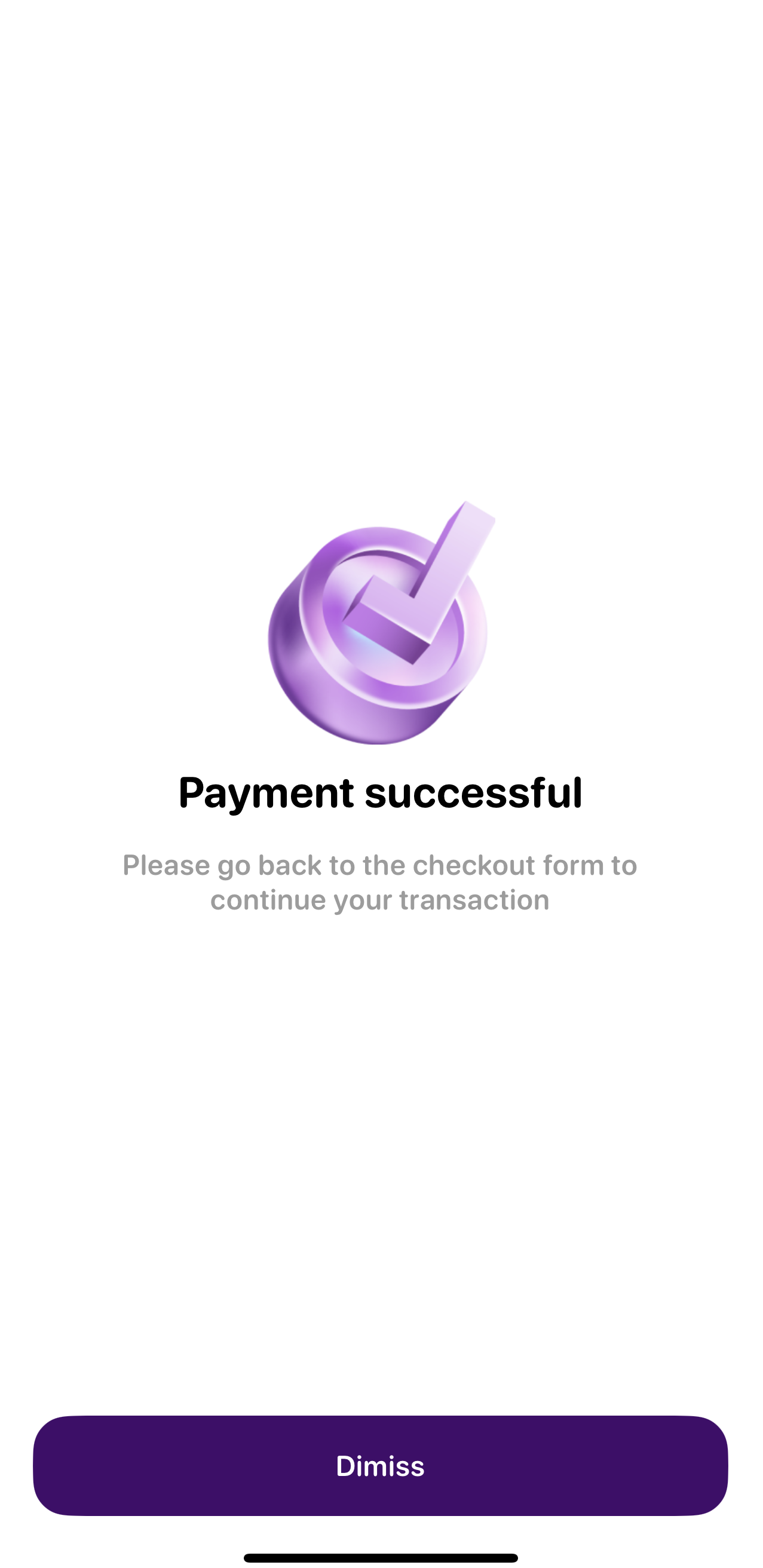
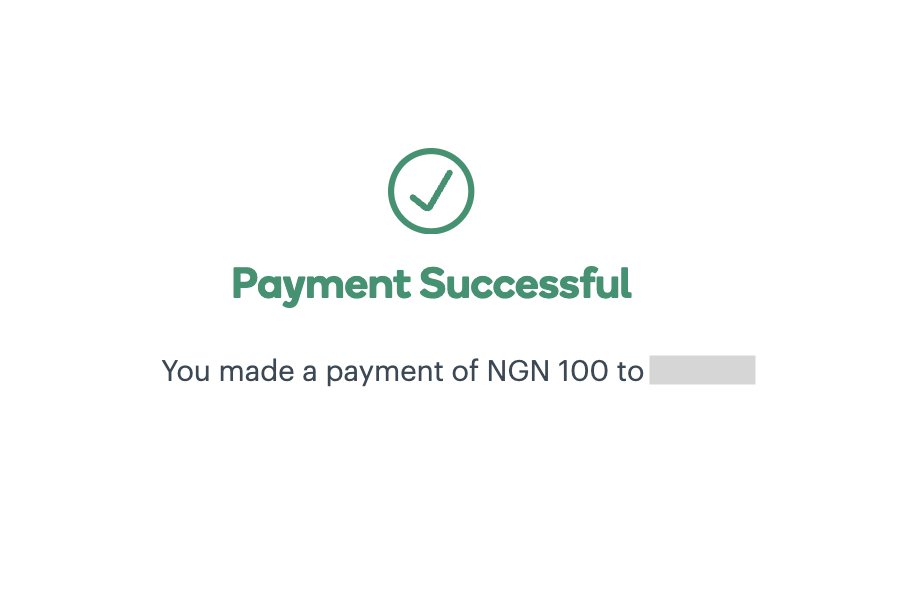
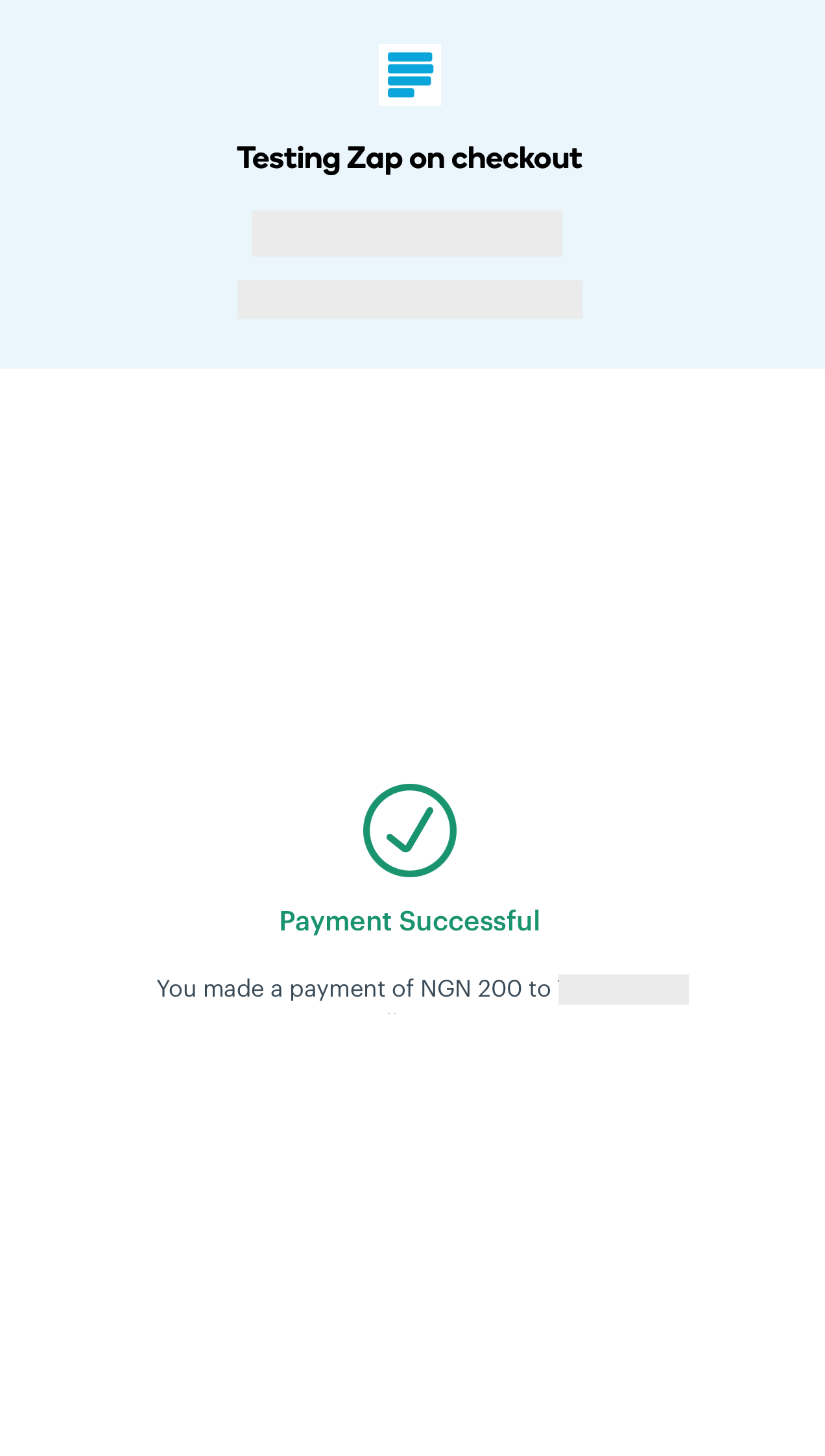
Your checkout page will update automatically to confirm the payment.
If you are on a Mobile Phone:
Select "Pay with Zap" on the checkout page.
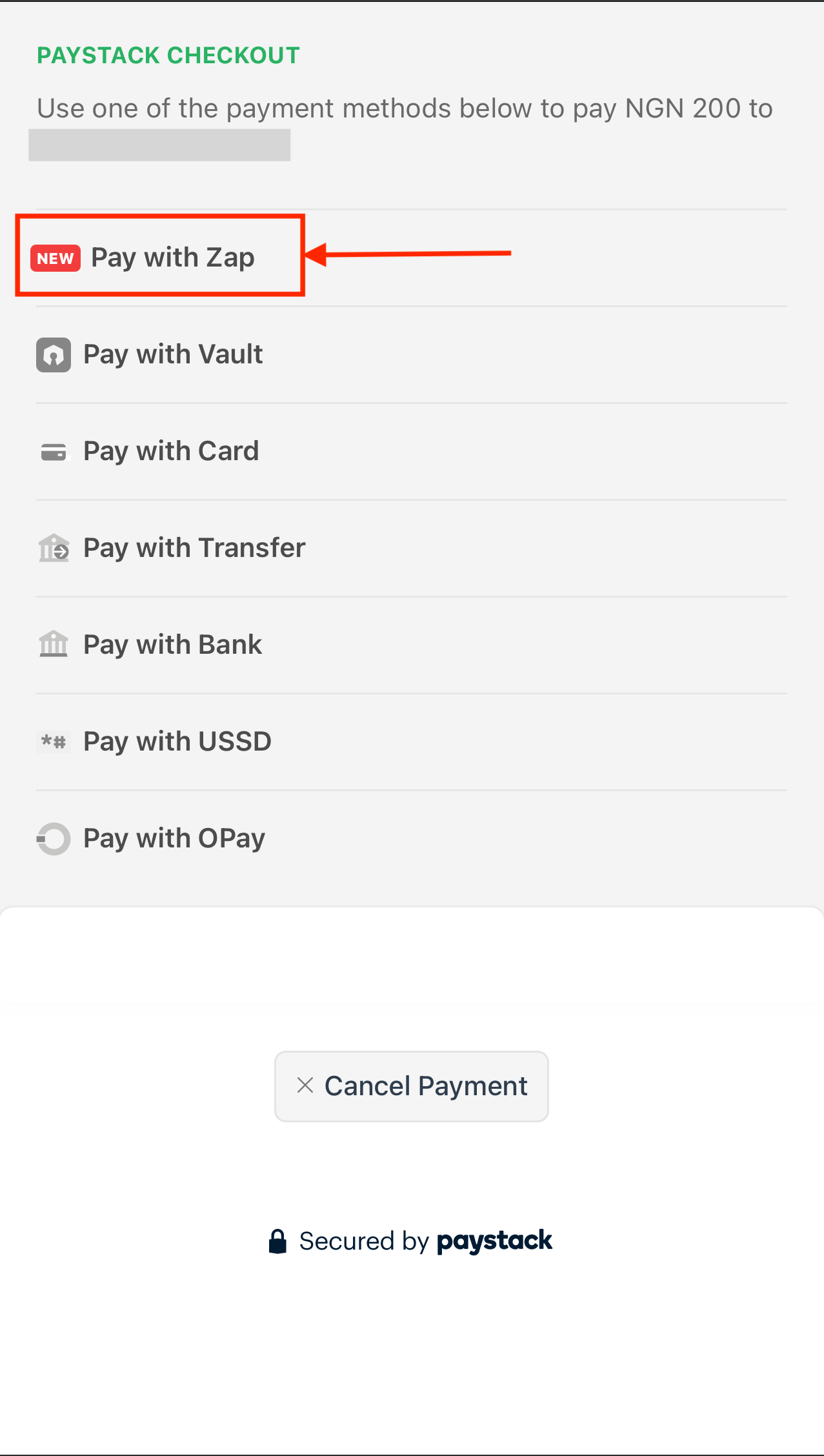
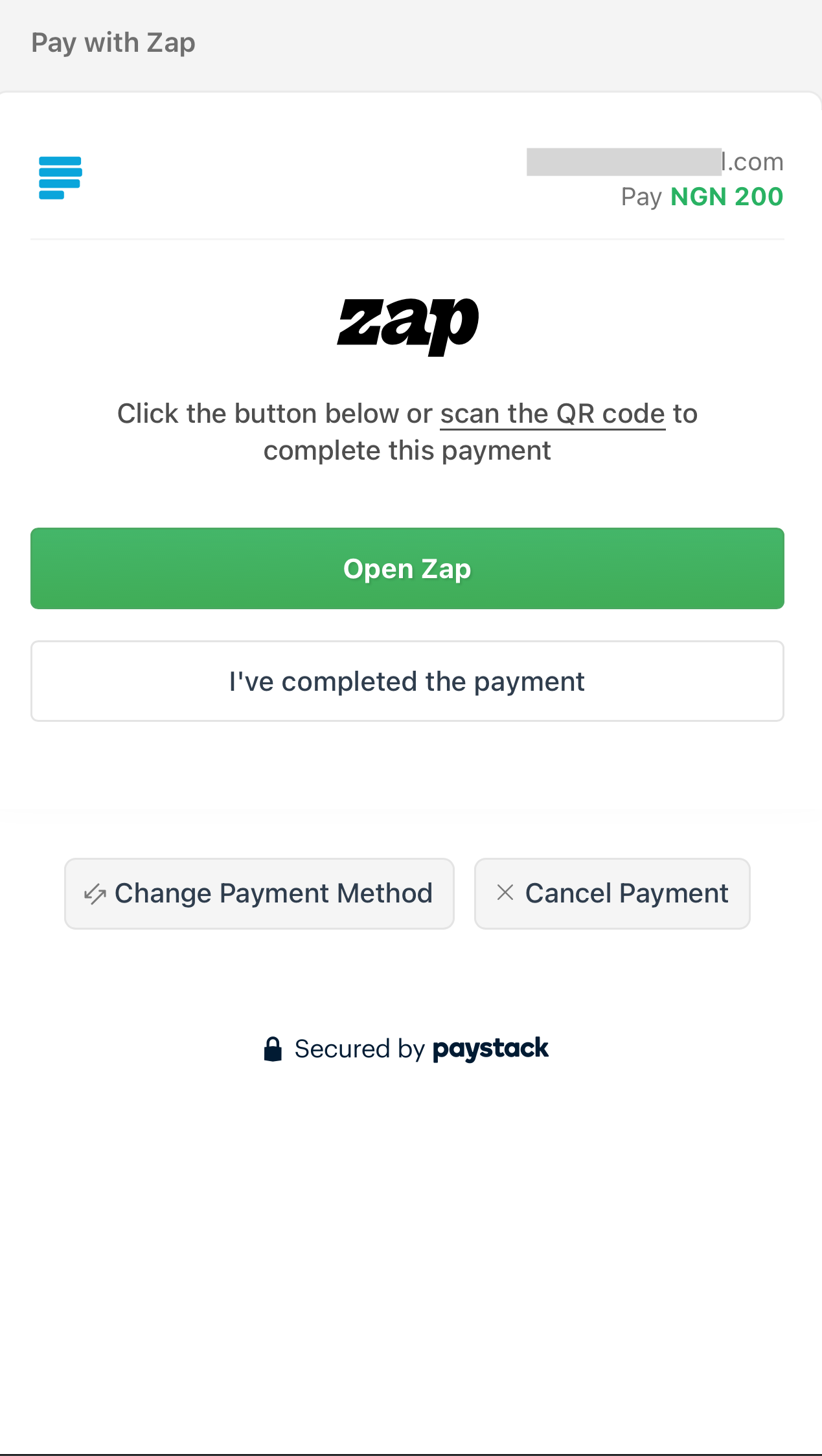
You will be switched to your Zap app.
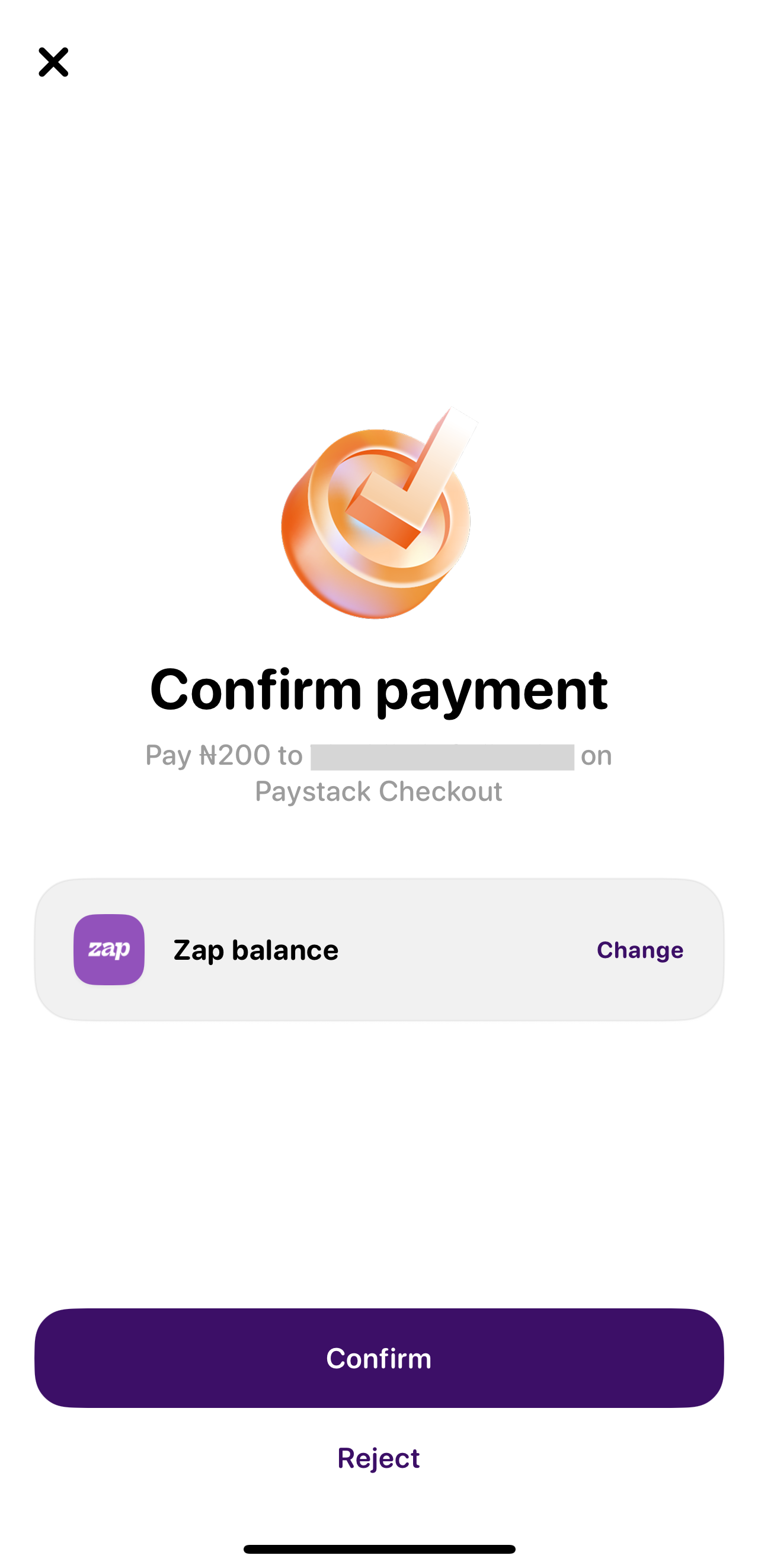
Confirm the transaction details and payment method, and tap "Confirm".
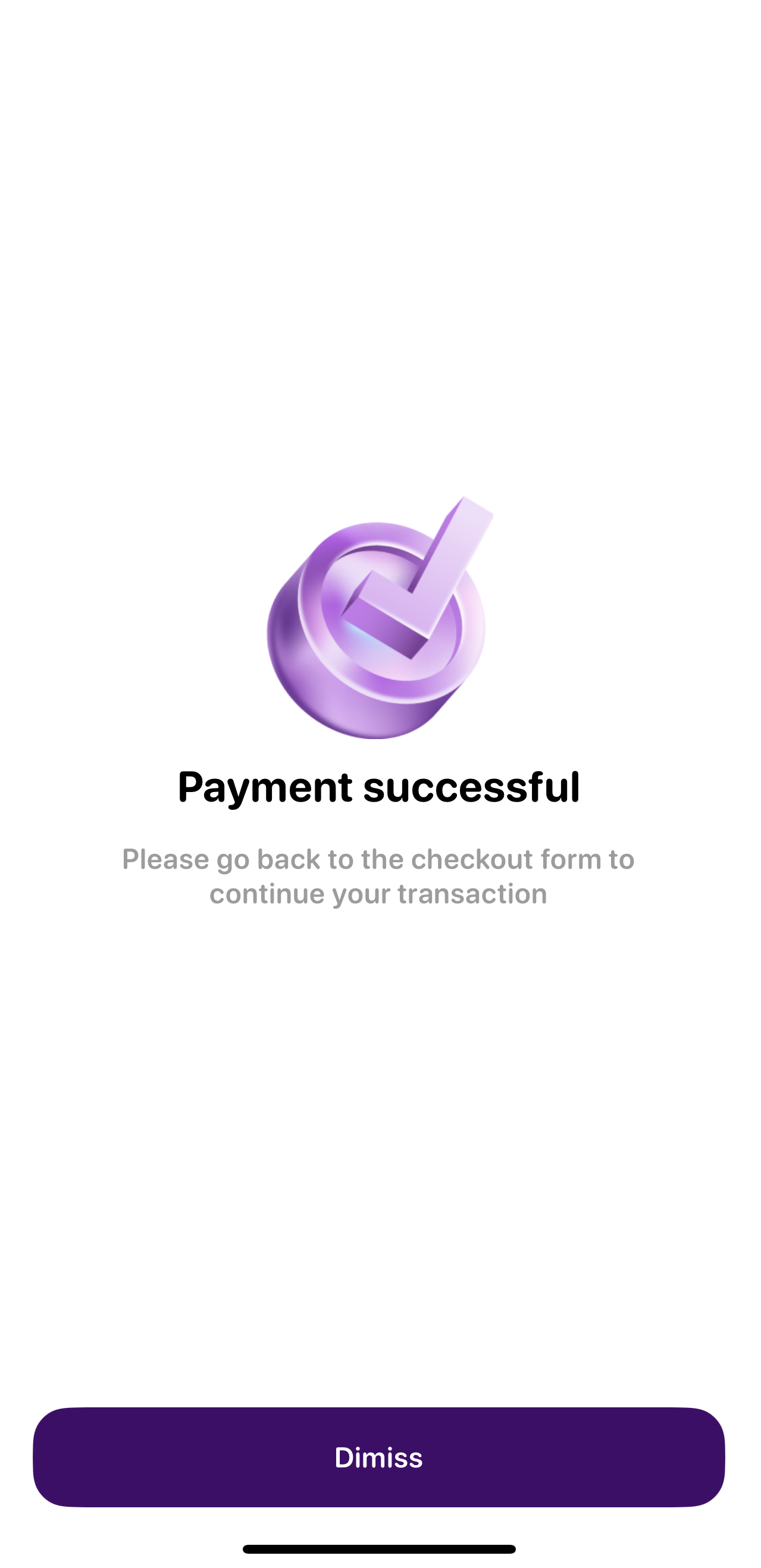
Your checkout page will update automatically to confirm the payment.
Don't have a Zap account? No problem!
You can get started by downloading the app and signing up to be a part of this experience.
Frequently Asked Questions (FAQs)
For Customers
How do I get a refund?
Refunds are handled directly by the merchant you paid. Please contact the merchant with your transaction details, and they will process your refund through their existing Paystack tools.
Why don't I see "Pay with Zap" on all websites?
"Pay with Zap" is automatically available to all Nigerian Paystack merchants who have enabled this payment method.
What if I have an issue with my Zap app or account?
For any issues related to your Zap account, approving transactions, or the app itself, please contact us at zap@paystack.com
For Paystack Merchants
How do I enable "Pay with Zap" for my customers?
"Pay with Zap" is automatically enabled as a payment channel for Nigerian merchants who currently have Pay with Bank enabled on their Paystack Dashboard.
How are merchant fees and refunds handled?
Fees: There’s no change to your transaction pricing. For international transactions (e.g., Apple Pay used via Zap), the standard international fee will apply.
Refunds: Refunds and disputes are managed using your existing merchant tooling and workflows. No changes are needed.
Need Help?
If you have any questions or require further help, please contact us at zap@paystack.com.